
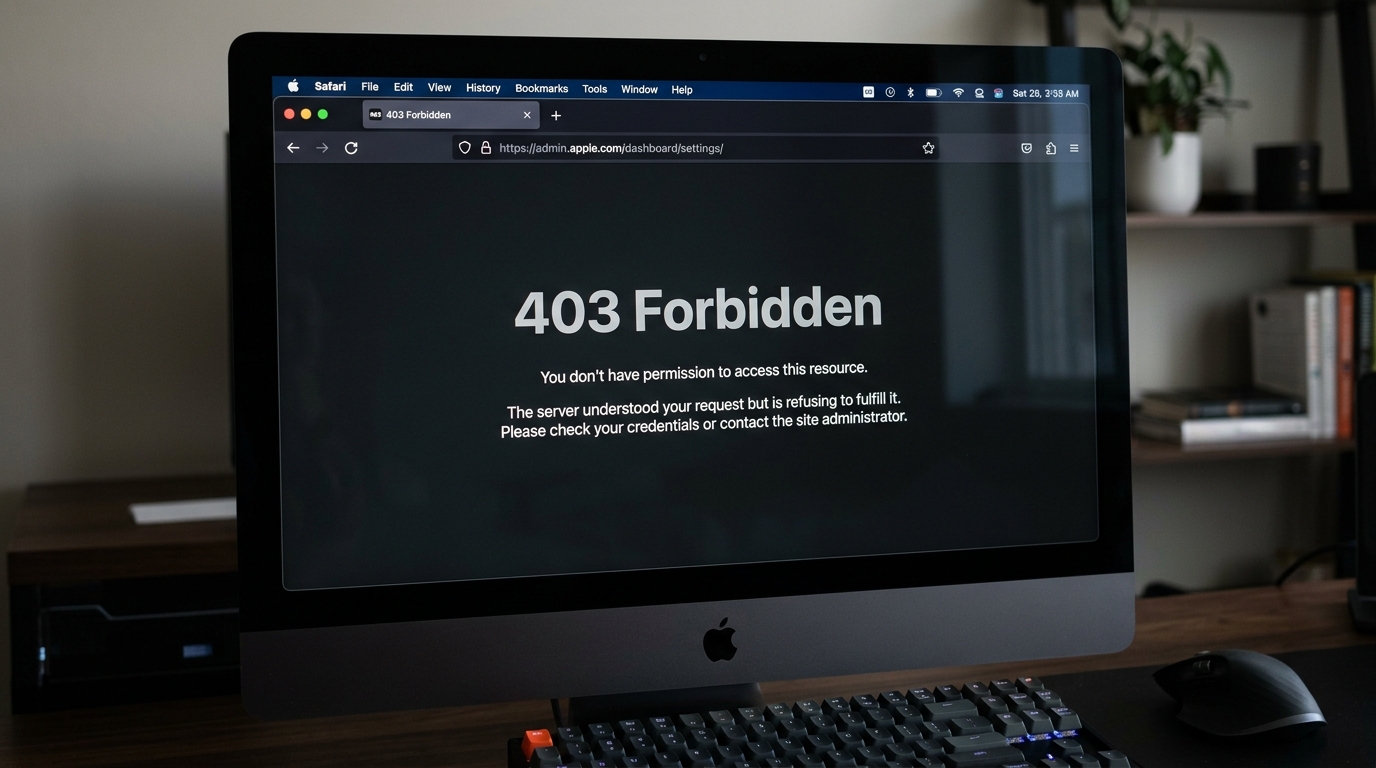
You are trying to access a website you visit regularly on your Mac, but instead of the homepage, Safari displays a blunt, unhelpful message: "403 Forbidden" or "You don't have permission to access this resource." It can be confusing and alarming, especially if you know you should have access to the site.
A 403 Forbidden Error in Safari essentially means that your Mac successfully connected to the website's server, but the server actively refused to let you in. While it might sound like a serious security problem, in most cases, it is caused by a simple miscommunication between Safari and the server—often related to corrupted cookies, a misconfigured VPN, or a strict firewall.
In this guide, we will walk you through exactly why the 403 Forbidden error happens and provide a step-by-step troubleshooting sequence to fix it so you can regain access to your favorite websites.
What is a 403 Forbidden Error?
Every time you type a URL into Safari, your Mac sends an HTTP request to the web server hosting that site. The server receives the request, processes it, and (usually) sends the webpage back with a "200 OK" status code, which you never see.
If something goes wrong, the server sends back an error code. A 403 Forbidden error means the server understood your request, but it is explicitly denying you access. It is the digital equivalent of a bouncer at a club checking your ID and telling you that you aren't on the guest list.
Unlike a 404 Not Found error (where the page literally doesn't exist) or a 500 Internal Server Error (where the server is broken), a 403 error means the server is working perfectly—it is just actively blocking you. The key to fixing it is figuring out why you are being blocked.
Common Causes of a 403 Error in Safari
There are several reasons a web server might throw a 403 error at your Mac:
- Corrupted Cookies or Cache: Websites use cookies to verify your identity and login session. If Safari sends a corrupted or expired cookie, the server might think you are an unauthorized user and block you.
- VPN or Proxy IP Blocks: Many websites (especially streaming services and banks) actively block IP addresses associated with VPNs. If you are using a VPN, the server might throw a 403 error to keep you out.
- Incorrect URL: You might be trying to access a directory or a specific file on the server that is meant to be private, rather than a public webpage.
- Geoblocking: Some websites restrict access to users from specific countries. If you are traveling abroad, you might be blocked based on your physical location.
- Server-Side Misconfiguration: Occasionally, the website administrator makes a mistake with their server permissions, accidentally blocking legitimate traffic. If this happens, everyone visiting the site will get a 403 error.
Step 1: Check the URL Carefully
Before you dive into clearing caches and tweaking settings, take a close look at the URL in Safari's address bar. A 403 error is often triggered when a user tries to access a directory instead of a specific web page.
For example, you might be allowed to visit www.example.com/images/logo.png, but if you try to visit the parent directory www.example.com/images/, the server's security settings will likely block you with a 403 error to prevent you from snooping through all their image files.
Ensure that the URL ends in a specific file extension (like .html or .php) or points to a standard homepage rather than a raw directory folder.
Step 2: Try a Private Browsing Window
The fastest way to determine if a 403 error is caused by a corrupted cookie or a problematic Safari extension is to test the website in a Private Browsing window. Private windows do not use your existing cookies or cache, providing a clean slate for your connection.
- Open Safari.
- In the top menu bar, click File and select New Private Window (or press Shift + Command + N).
- Type the URL of the problematic website into the address bar and hit Return.
If the website loads perfectly in the Private Window, you can be 100% certain that the issue lies with the stored data in your standard browsing session. Proceed to Step 3 to clear it out.
Step 3: Clear Safari's Cache and Cookies
If the Private Window test was successful, you need to clear the corrupted cookie or cached file that is causing the server to reject your standard Safari session.
To clear the data for the specific website causing the issue:
- In Safari, click on Safari in the top menu bar and select Settings... (or Preferences).
- Click on the Privacy tab.
- Click the Manage Website Data... button.
- Use the search bar in the top right of the window to search for the name of the website.
- Select the website from the list and click Remove. (You can also click Remove All to clear everything, but this is usually unnecessary).
- Click Done, close the Settings window, and reload the webpage.
Step 4: Disconnect Your VPN or Proxy
If you use a Virtual Private Network (VPN) or iCloud Private Relay, your IP address is being masked and routed through a different server. Many high-security websites, such as online banks, government portals, and streaming services like Netflix, maintain strict blocklists of known VPN IP addresses to prevent fraud and enforce regional licensing.
If the server detects that your request is coming from a VPN, it will immediately issue a 403 Forbidden error.
- If you use a third-party VPN app (e.g., ExpressVPN, NordVPN), open the app and click Disconnect.
- If you use Apple's built-in iCloud Private Relay, go to System Settings > [Your Name] / Apple ID > iCloud > Private Relay, and toggle it off temporarily.
- Reload the webpage in Safari.
If disabling the VPN fixes the issue, you will need to keep it disabled while using that specific website, or try connecting to a different server location within your VPN app.
Step 5: Check Your Mac's Date and Time
It might sound strange, but an incorrect date and time on your Mac can cause 403 Forbidden errors. Secure websites use SSL/TLS certificates to verify their identity and encrypt your connection. These certificates are heavily dependent on accurate timestamps.
If your Mac's clock is significantly out of sync with the real world, the website's server may reject the connection, assuming it is a security risk or a replay attack, resulting in a 403 error.
- Open System Settings on your Mac.
- Navigate to General > Date & Time.
- Ensure that the toggle for Set time and date automatically is turned on.
- If it is already on, try toggling it off, waiting a few seconds, and toggling it back on to force your Mac to re-sync with Apple's time servers.
Step 6: Contact the Website Administrator
If you have cleared your cookies, verified your URL, disabled your VPN, and checked your system clock, but you are still encountering a 403 Forbidden error, the issue is almost certainly on the server's end.
The website administrator may have accidentally misconfigured their file permissions (a very common mistake on Apache and Nginx web servers), or they may have instituted an IP block on your specific internet provider.
At this point, you should reach out to the website's support team or administrator. Let them know you are receiving a 403 error, mention the exact URL you are trying to access, and inform them that you have already cleared your cache and disabled any VPNs. They will be able to check their server logs and whitelist your connection if necessary.
Conclusion
A 403 Forbidden error in Safari can be frustrating, but it is rarely a sign of a deep technical problem on your Mac. By understanding that it is simply a permission denial, you can methodically troubleshoot the issue. Usually, a quick purge of Safari's cookies or disabling an overzealous VPN is all it takes to get you past the digital bouncer and back onto the website you need.