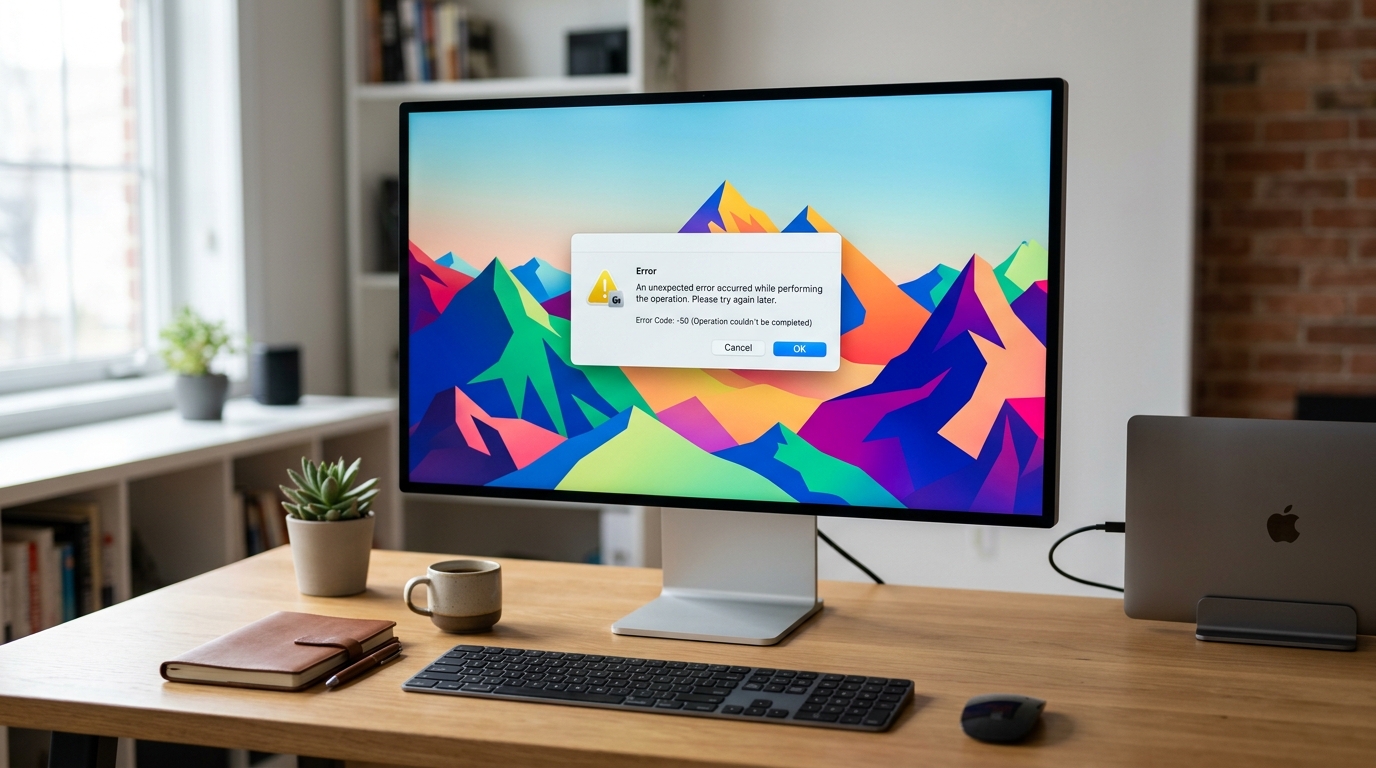
You've successfully restored your iPhone through iTunes, the progress bar completed, and your iPhone restarted — but instead of reaching the Setup screen, iTunes pops up with: "The iPhone could not be activated. An unknown error occurred (3600)."
iTunes Error 3600 is an activation error, not a restore error. This distinction is important. The restore (copying the firmware to your device) completed successfully. The problem occurs in the next step, where Apple's activation servers need to validate your iPhone's IMEI and issue an activation certificate before the device can be used.
In most cases, Error 3600 is temporary and caused by a network issue or a brief Apple server hiccup. Let's walk through the fixes.
Step 1: Check Apple's System Status
Because Error 3600 is purely an activation server issue, the most important first step is checking whether Apple's servers are experiencing a temporary outage.
- On any browser, go to Apple's official System Status page (search "Apple System Status" in Google).
- Look for the iPhone Activation or Device Enrollment Program entry.
- If it shows an incident (yellow or red status), Apple is aware of the problem and working to fix it. You simply need to wait and try again in 30–60 minutes.
Step 2: Try Activating Without iTunes (Wi-Fi Activation)
After a restore, the iPhone can often activate itself directly over Wi-Fi without needing to go through iTunes. This bypasses the iTunes-to-server communication path that is failing with Error 3600.
- Disconnect your iPhone from the computer.
- Your iPhone should show a "Hello" or "Connect to iTunes" screen.
- Insert a working SIM card into the iPhone if you haven't already.
- Connect to a Wi-Fi network by tapping the network name on the screen.
- Wait a few minutes for the iPhone to activate automatically over Wi-Fi.
If it activates, you will proceed directly to the Setup Assistant without ever needing iTunes to complete the activation.
Step 3: Restart iTunes and Reconnect
If the Wi-Fi activation fails, return to iTunes and try again with a clean session.
- Disconnect your iPhone.
- Completely quit iTunes (Command+Q on Mac, or close the window and end the process in Task Manager on Windows).
- Restart your computer.
- Reopen iTunes, reconnect your iPhone, and click Continue when prompted to activate.
Step 4: Update iTunes and Try Again
Older iTunes versions may fail to communicate properly with Apple's current activation server endpoints.
- In iTunes, click Help > Check for Updates (Windows), or update macOS to ensure the device management framework is current.
- After updating, reconnect the iPhone and attempt activation again.
Step 5: Contact Apple Support
If you have waited for the server status to clear, tried Wi-Fi activation, updated iTunes, and restarted multiple times, but Error 3600 persists, there may be an issue specific to your iPhone's IMEI — for example, the device may be registered as lost, stolen, or carrier-locked in Apple's activation database.
In this case, contact Apple Support directly at support.apple.com. Provide your iPhone's serial number (on the back of the device) and explain that you are receiving Error 3600. Apple Support can investigate whether there is an activation lock or account issue preventing the server-side activation from completing.
Conclusion
iTunes Error 3600 is almost always a temporary server communication issue that resolves itself within hours. Checking the System Status page, trying Wi-Fi activation, and restarting iTunes resolves it for the vast majority of users. Persistent 3600 errors that don't resolve with these steps warrant a direct call to Apple Support to investigate any account-level activation issues on your iPhone's IMEI.